Article sections
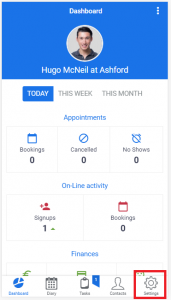
To Access Text/Email Templates, you need to click the ‘Settings’ button at the bottom of your screen, which will take you to the ‘Settings’ area.
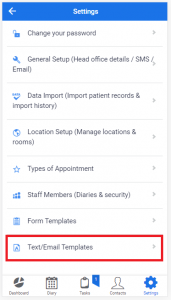
Then select Text/Email Templates
You can toggle between Text and Email to view and edit the existing templates
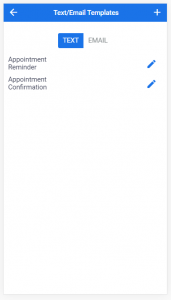
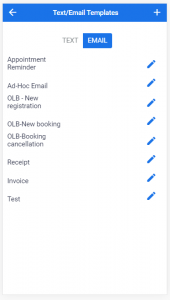
To Add a new Template, select whether you wish to add a Text or Email template and then click on the + icon.
Give the Template a name and then build the template, using a mixture of text and available database fields. There are also basic editing functions – such as setting text to Bold or Italic available.
 Top Tip – have a look at, or even copy and paste from an existing template to assist you in creating a New Template
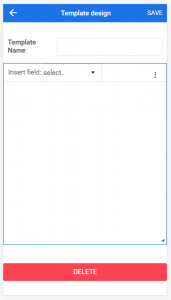
Once completed click Save to add the new Template to the list of available templates.
Editing an existing template
From the list of available templates, click on the Pencil Icon of your chosen template (the example below is a Text Appointment Confirmation)
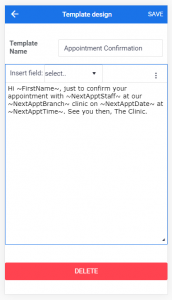
From within the template you can edit to adjust the template, once the changes are complete, remember to save.
In addition you can remove any existing Template by clicking Delete (and confirming this).