Article sections
Accessed either via the Diary (via an appointment) or Contacts, which opens the Patient Summary screen and then selecting Comms
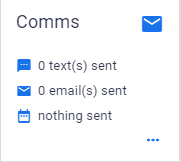
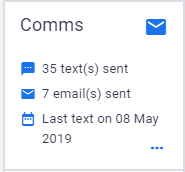
The Comms overview tile shows the summary of SMS and Email communications for the selected patient and the date of the last communication (if none then nothing sent)
Clicking onto the tile displays all communications (SMS, Email, Letter, uploaded Images) (if any) sent in the last 12 Months. You can toggle to show all (Forever) messages.
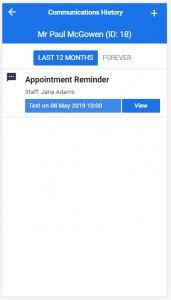
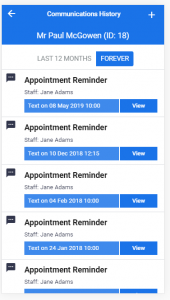
You can display the communication via the View button:
SMS EMAIL IMAGE(File Upload)
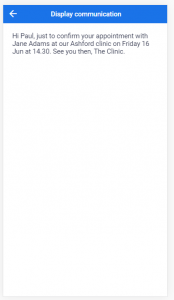
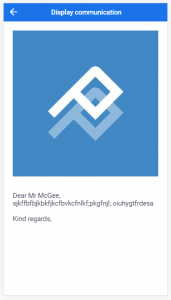
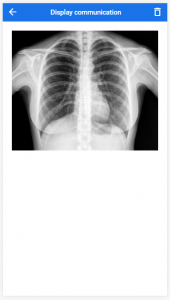
Files which have been uploaded can also be deleted (with a confirmation prompt) from the patient record. Communications such as SMS and EMail cannot be removed
Adding a Communication
You can add/send communications to the selected patient via the + icon, and upload Images, take pictures all to be associated with the customer record card.
Depending upon the system settings (whether SMTP details have been set for Email or SMS activated) you will be prompted to setup the functionality if required, likewise if the patient doesn’t have a mobile stored then the Text option will not be available.
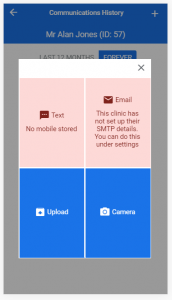
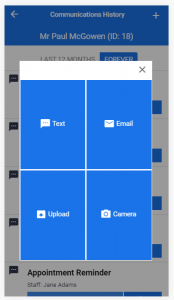
Clicking on the tile launches the appropriate function:
Text – you can either select one of the practices templates or free text a SMS to be sent to the patient.
Email – you can either select one of the practices templates or free text an Email to be sent to the patient.
Upload – ability to upload files onto the Patient Record Card.
Camera – (after granting the PracticePal App the necessary access rights) you can take pictures via your device.