Article sections
Accessed either via the Diary (via an appointment) or Contacts, which opens the Patient Summary screen and then selecting Contact, the contact details screen contains the following fields, all of which are editable via the edit button – pencil icon – in the top left of the screen. The ability to create new contacts and/or edit existing contacts can be controlled via Security Groups
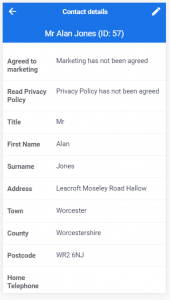
Agreed to Marketing – shows whether the patient has agreed to Marketing (for GDPR compliance);
Read Privacy Policy – similarly denotes whether the patient has been marked as has having read the practices privacy policy;
Title – patients title (from available list);
First Name – patients first name;
Surname – patients surname;
Address – First part of the address;
Town – patients town;
County – patients county;
Postcode – patients postcode – if you have the linked with the Postcode Lookup integration within PracticePal, you can enter the postcode and select the full address details;
Home Telephone – patients home telephone number;
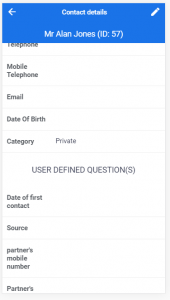
Work Telephone – patients work telephone number;
Mobile Telephone – patients mobile number – required to enable SMS as a communication method with this customer;
Email – patients email address – required to enable Email as a communication method with this customer;
Date of Birth – displays the data of birth – either enter as dd/mm/yyyy or select from calendar;
Category – select from the list of the available options for your practice (Desktop Version > Setup > Types of Contacts);
You can also access any User Defined questions that your practice has created. (Desktop Version > Setup > User Defined Questions).